The complete guide
How to join any Minecraft Bedrock server on Xbox and PlayStation
Updated
Open Minecraft Bedrock on a phone or a PC and the Servers tab has an Add Server button: type an address, save it, join. Open it on an Xbox or a PlayStation and the button is not there. You get a short list of featured servers and nothing else. This guide explains why, lays out every way console players reach the other servers, and is honest about the cost of each one, including the one we make.
The short answer: consoles can join any Bedrock server through a LAN world. Something on your home Wi-Fi shows a world on the console's Friends tab; you join it, and the game is moved on to the real server. A PC can do that, or a phone app like Warpling can. Changing the console's DNS is the other common route.
Why consoles only show featured servers
The Servers tab on Xbox and PlayStation lists a handful of partner networks that Microsoft features on consoles. Over the years that list has included The Hive, CubeCraft, Lifeboat, Mineville, Galaxite and Enchanted Dragons. The list is Microsoft's choice and changes from time to time; your console shows the current one.
What consoles do not have is a field to type an address. That is a choice the game makes on consoles, not a limit of the servers: thousands of Bedrock servers run the same game, speak the same network protocol, and accept console players once they arrive. The only problem is getting the console to the door.
Two things in the console version leave that door open:
- LAN worlds. The Friends tab lists worlds that someone on your local network is hosting. The console looks for them by calling out across your Wi-Fi.
- Server hand-off. A Bedrock server can tell a player's game to move on to another address. Big networks use this to move players between their lobbies.
Put the two together and you have the method every console route below is built on, except Realms.
What you need, whatever the method
- An online membership on the console. Xbox needs Game Pass Essential (formerly Core) or higher for online multiplayer; PlayStation needs PlayStation Plus. Without it, servers refuse the console however it arrives.
- A Microsoft account signed in to Minecraft on the console. PlayStation players sign in once, from the game's menu.
- Multiplayer allowed on the account. On a child account this is a parent's setting; see parental controls and custom servers.
- The server's address and port. Bedrock's default port is 19132. Our console server list has addresses we checked online.
- A game version the server accepts. Most big servers take the current release within days of an update; small servers can lag behind.
Every method, compared
| Method | What you need | Any server? | Cost | The catch |
|---|---|---|---|---|
| Featured list | Nothing | No, partners only | Free | Only the servers Microsoft picks |
| Realms | A Realms subscription | No, private worlds only | Monthly fee | A world for you and friends, not a public server |
| DNS change | Console network settings | Yes | Free | All your console's lookups go through someone else's DNS server |
| PC on your network | A Windows, Mac or Linux PC left running | Yes | Free | The PC has to be on and nearby every time |
| Phone app (Warpling and others) | A phone on the same Wi-Fi | Yes | Free to connect | The phone must be on your Wi-Fi when you join |
The featured list
The simplest route, when it covers what you want. Open Play, then Servers, and pick one. If the server you are after is featured, you need nothing else on this page. Our server guides say so for each featured network.
Realms
Realms are private worlds hosted by Mojang for a monthly fee. They are good for a group of friends who want one world that is always up. They are not a way into public servers: you cannot point a Realm at DonutSMP or ManaCube.
Changing the console's DNS
Your console asks a DNS server to turn names like geo.hivebedrock.network into addresses. Community projects run DNS servers that answer one of the featured server names with their own server instead, which shows a menu where you can type any address. BedrockConnect is the best known.
It works and it is free. The costs are real, though. You change your console's network settings by hand, and every name your console looks up, for every game and app, now goes through a server run by people you do not know. If that server is slow or goes offline, your console's internet goes with it until you change the settings back. Some people are fine with that trade; others are not.
A PC on your network
Free programs run on a PC and show a LAN world that hands consoles on to a server you choose. The open-source Phantom is a common one. It is a solid option if you have a computer near the console that you do not mind leaving on. You start it from a terminal or a small window each time, with the server's address.
A phone app on your Wi-Fi
The same LAN world, from the device that is already in your pocket. Warpling is one of these apps; there are others. Your phone shows the world, your console joins it, and the game is moved on to the server. You do not change any console settings, and nothing about the console's internet passes through the phone or through us after the hand-off.
Whichever route you use, the server still decides whether to let you in. None of these methods changes your account, your membership or your parental settings.
How to join with Warpling, step by step
Warpling runs on Android and iPhone and is free to connect, every time. Here is the whole flow.
1. Put your phone on the same Wi-Fi as your console
Same network name, same router. A console on Ethernet is fine when the cable goes to the same router as the Wi-Fi. A guest network will not work, because guest networks keep devices from seeing each other.
2. Pick a server
Type an address and port, choose one you saved, or pick one from Browse, a hand-picked list of popular Bedrock servers with live player counts.
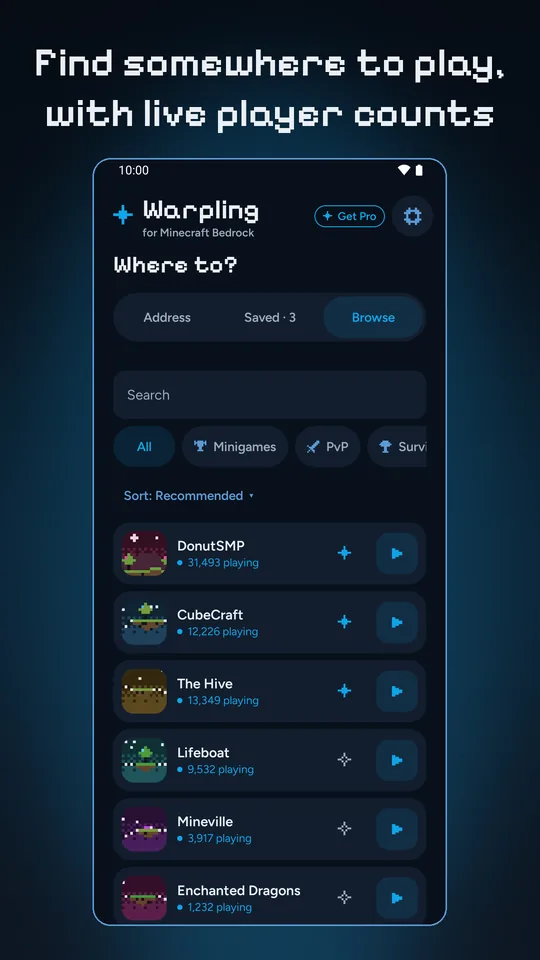
Before you start, Warpling pings the server and shows whether it is online, how many players are on, the latency and the game version. If it is offline, you find out now rather than on the couch.
3. Tap Start
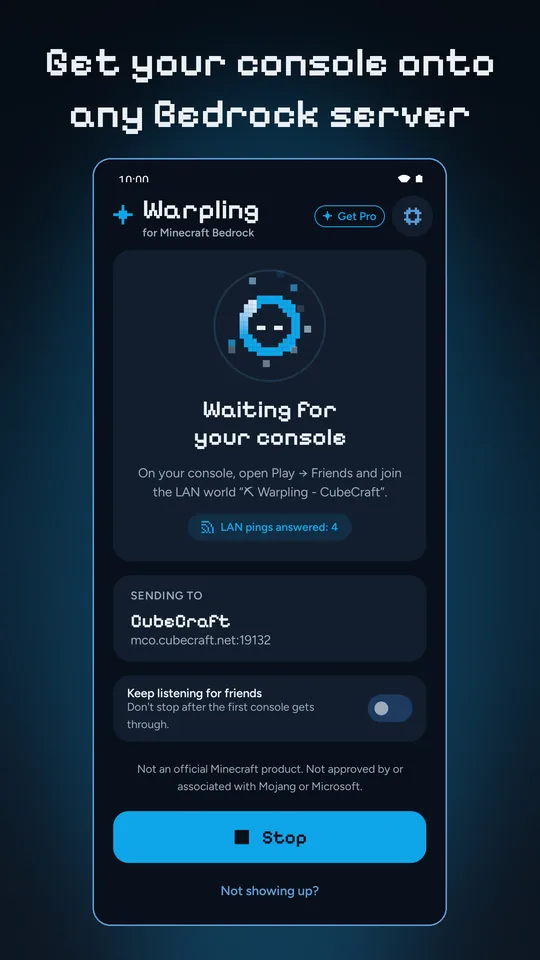
Your phone now shows a LAN world on your Wi-Fi. The screen tells you what to do on the console and names the server you will be sent to.
4. On the console: Play, then Friends
Open Minecraft, choose Play, then the Friends tab. The world appears under LAN games within a few seconds. Join it, and the game moves you on to your server. From here on your console talks to the server directly; you can put your phone away.
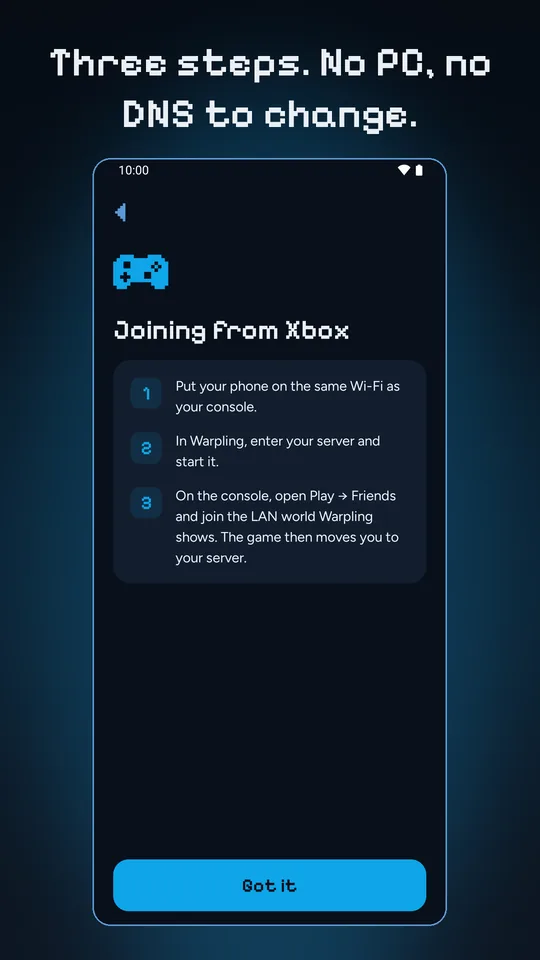
That is it. Next time, your server is in Saved, and starting it is one tap.
The settings that matter
- Advertised version. A console only lists a LAN world that matches its game version. When a server and your console are on different versions, Warpling can show the world as the version the console expects. Not showing up? tells you when this is the cause.
- Not showing up? A diagnosis instead of a shrug. It checks your phone's Wi-Fi and address, VPN, battery settings, the server, and whether any console has looked for the world yet, then says what to fix.
- Saved servers. As many as you like, each with its live status.
- Share links and QR codes. Every server can be sent as a link that opens Warpling with the address filled in. Server owners can make a printable code with the Server Kit.
When it does not work
Nine times out of ten the world does not show up because the phone and console are not really on the same network. A guest network, a second router, a VPN on the phone, or a router setting that keeps wireless devices apart are the usual causes. Our eight fixes for a LAN game that will not show walk through each one.
If the world shows and you join, but you land back on the main menu a moment later, the server turned the console away. The phone never hears why. In order of likelihood: the server does not take your game version yet; it is full, whitelisted, or you are banned; multiplayer is off on the account; the console has no online membership; or the server does not accept players moved on from another world.
FAQ
Does this work on Nintendo Switch?
Not with Warpling. The app says so on its first screen, before you spend an evening on it. Some other methods say they work on Switch; we have not tested them. More in custom servers on Nintendo Switch.
Does Warpling need my Microsoft or Sony sign-in?
No. It never asks for either, because it never needs one. There is no Warpling account at all.
Does my game run through Warpling's servers?
No. Warpling has no game servers. Your phone shows the LAN world and hands the console on; after that the console and the server talk directly.
Will it slow my game down?
No. Once you are moved on, the phone is out of the path, so your latency is the same as joining the server any other way.
Can I join a Java server?
Warpling joins Bedrock servers. A Java server takes console players only if it also runs a Bedrock bridge (Geyser is the common one) and publishes a Bedrock address and port. Many big networks do; ask the server.
Can two consoles join at once?
One console per session. When the first is through, start again for the next.
Is Warpling free?
Yes. Connecting is free and always will be. Warpling Pro is a one-time purchase for the home-screen widget, extra themes, and a few looks; it does not change what you can join.
Do I have to keep the app open?
Only until the console is through. Warpling keeps the session going in the background while you walk to the console, and stops itself once the hand-off is done.
Not an official Minecraft product. Not approved by or associated with Mojang or Microsoft. Server names belong to their owners; listed servers are run by them, not by Warpling.